The screen freezes during an episode, an error code appears without explanation, or the app simply refuses to launch. These situations occur on Disney Plus more often than one might think, and most can be resolved in just a few minutes with the right reflexes.
General outage or local bug: the first reflex to adopt on Disney Plus
You just launched Disney Plus and nothing works. Before adjusting your device’s settings, ask yourself a simple question: is the problem on your end or with the platform itself?
Widespread outages regularly affect the service. For example, PhonAndroid documented a major outage that paralyzed Disney Plus in France and Europe, affecting all users simultaneously. In this case, no local manipulation can resolve the issue.
To check, consult a downtime aggregator like DownDetector or type “Disney Plus outage” on a social network. If hundreds of users report the same issue at the same time, all you need to do is wait. This is a diagnosis that official help pages do not clearly encourage, even though it saves time by avoiding unnecessary hardware resets. A detailed article also lists the most common Disney Plus bugs and outages and their associated solutions.
Error code 42 on Disney Plus: network issue and concrete solutions
Among the recurring bugs, the error code 42 frequently appears in forums. It indicates a communication issue between the app and the Disney Plus servers, either due to a weak connection or a timeout.
A timeout occurs when your device sends a request to the server and the response takes too long to arrive. The app then considers that the connection is lost and displays the error.
Steps to correct error 42
The steps below are listed from the simplest to the most radical. Test each one before moving on to the next:
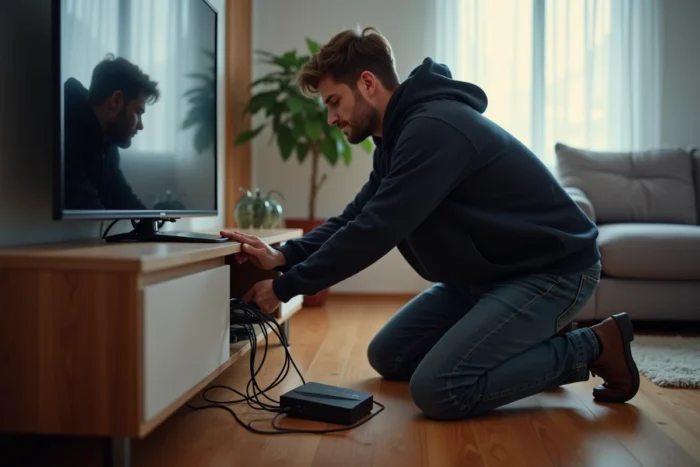
- Restart your router or Internet box by unplugging it for about thirty seconds, then plug it back in. This forces the renewal of the network connection.
- Start playing another program on Disney Plus. If only one piece of content is problematic, the issue is on the server side for that specific title.
- Reduce the playback quality in the app settings. A lower resolution stream requires less bandwidth and often bypasses the timeout.
- Clear the cache of the Disney Plus app (in your device settings, under applications). Accumulated cache can cause conflicts.
- Uninstall and then reinstall the app if nothing else has worked.
Reducing the stream quality is often the quickest solution when the connection is unstable, for example, over Wi-Fi from a room far from the router.
Disney Plus app bugs: cache, updates, and device compatibility
Error code 42 is not the only problem. Many bugs on Disney Plus do not display any code. The app crashes on startup, the sound desynchronizes, or the screen remains black.
The cache: a frequent and underestimated culprit
Every time you use Disney Plus, the app stores temporary data to speed up loading. Over time, these files accumulate and can conflict with an updated version of the app.
Clearing the cache does not delete your credentials or your watchlist. It is a risk-free operation that resolves a significant portion of crashes. On Android, go to Settings, then Applications, then Disney Plus, then Storage, then Clear Cache. On iOS, the only reliable method is to uninstall and then reinstall the app.
Updates and device compatibility
An outdated app is a frequent source of malfunctions. Disney Plus regularly deploys patches. Did you notice that the bug appeared after an update to your TV or phone’s system? This is a classic case of temporary incompatibility.
Check that your device is still on the list of compatible devices. Smart TVs older than a few years sometimes lose official support. In this case, an external HDMI box like a Chromecast or Fire TV Stick can take over without replacing the TV.
Wi-Fi connection and Disney Plus streaming: optimizing your home network
The majority of playback bugs on Disney Plus are related to the network, not the app. Streaming video in high definition requires a stable and sufficiently fast connection. Home Wi-Fi, with its walls and interference, is the weak link.
A few adjustments can radically change the stability of streaming:
- Prefer the 5 GHz Wi-Fi band if your router offers it. It provides higher throughput at short distances compared to the 2.4 GHz band.
- Move your device closer to the router or use an Ethernet cable. The cable eliminates any instability related to wireless connections.
- Limit the number of devices connected simultaneously. Each device consumes bandwidth, even in standby for some.
An Ethernet cable remains the most reliable solution for streaming, especially on a TV or gaming console located far from the router. An Ethernet adapter costs a few euros and eliminates most interruptions.
When bugs persist despite all these steps, the problem sometimes lies with the Internet service provider. A quick speed test from another device can confirm or rule out this possibility. If the measured speed is much lower than what your subscription provides, contact your provider before blaming Disney Plus.
Most issues on Disney Plus follow a predictable pattern: global outage, network issue, or app conflict. By first checking the service status, then the connection, and finally the app itself, you cover almost all cases without advanced technical intervention.